
7 pro tips to master Notion offline mode
What works offline in Notion, what doesn’t, and how to avoid surprises...

Hey Notion friends,
Did you hear?
Notion finally rolled out one of its most requested features: Offline Mode.
After years of jokes, memes, and endless requests, the feature has shipped. And it changes how you can work in planes, trains, and anywhere without reliable Wi-Fi.
But… offline mode isn’t as simple as “everything just works.” And if you don’t know the rules, you’ll open a page offline and find half your content missing.
So today, I’ll share the 7 most important things you need to know about Notion’s offline mode. What works, what doesn’t, and how to make sure you’re never stuck without the info you need.
Let’s get into it.
Brief reminder before we dive in…
I recently launched my brand-new personal newsletter!
It’s the place where I’ll share my best AI tools, prompts, workflows, automation, productivity systems, and so much more (going way beyond Notion).
If you enjoy learning smarter ways to work, create, and run your life and business, you’re going to love it.
It’s 100% free to join. You can sign up here 👇

Alright, now let’s jump into today’s Notion big news! 👇
1. You must toggle pages offline on every device.
Offline mode only works in the desktop and mobile apps (not in the browser).
To enable it, go to any page, hit the “•••” menu, and toggle Available offline.
Once you’ve toggled a page offline, you can always see the full list of your downloaded pages in Settings → Offline inside the desktop or mobile app. This is your central dashboard to check which pages are stored locally and remove any you no longer need.
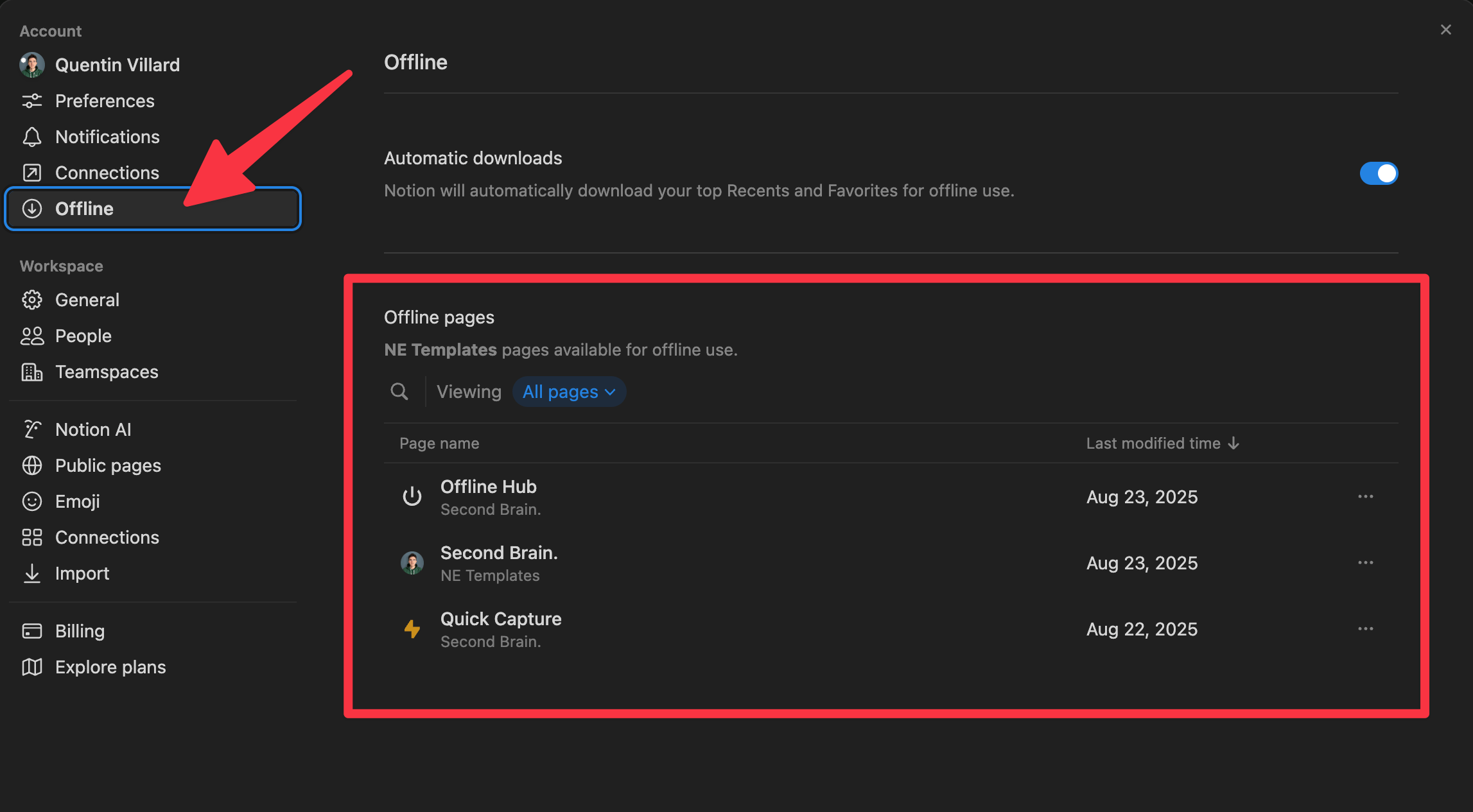
Important: This is device-specific. A page marked offline on your laptop won’t automatically be offline on your phone. Toggle it separately wherever you’ll need it.
2. Paid plans auto-download your recents and favorites.
On free plans, you must toggle every page manually. On Plus and higher, Notion automatically saves:
Your 20 most recently viewed pages
Up to 20 favorited pages
This makes sure your go-to content is always available, even if you forgot to prepare. And that works on all your devices automatically.
Pro tip: reorder your favorites so your most critical pages sit in the top 20 slots.
3. Sub-pages do not sync automatically.
Marking a top-level page offline does not bring its child pages along.
If you rely on nested structures, you’ll need to toggle each sub-page individually.
Best practice: create an “Offline Hub” page with links to all the pages you want for travel. Toggle each linked page offline so you know they’ll be ready when you disconnect.
4. Databases only load 50 items from the 1st view.
This is the biggest surprise for most users. Notion downloads the first 50 entries from the first view of a database on your page (this works for both databases directly on the page and linked views of databases).
That means if “All tasks” is your first view and you have 500 entries, you’ll only see the first 50 (and maybe none of them are yours).
Here are 2 easy workarounds:
Put your most important filtered view first (e.g., “My tasks today”).
If you need multiple slices, add multiple linked database views, each with a different filter as the first view.
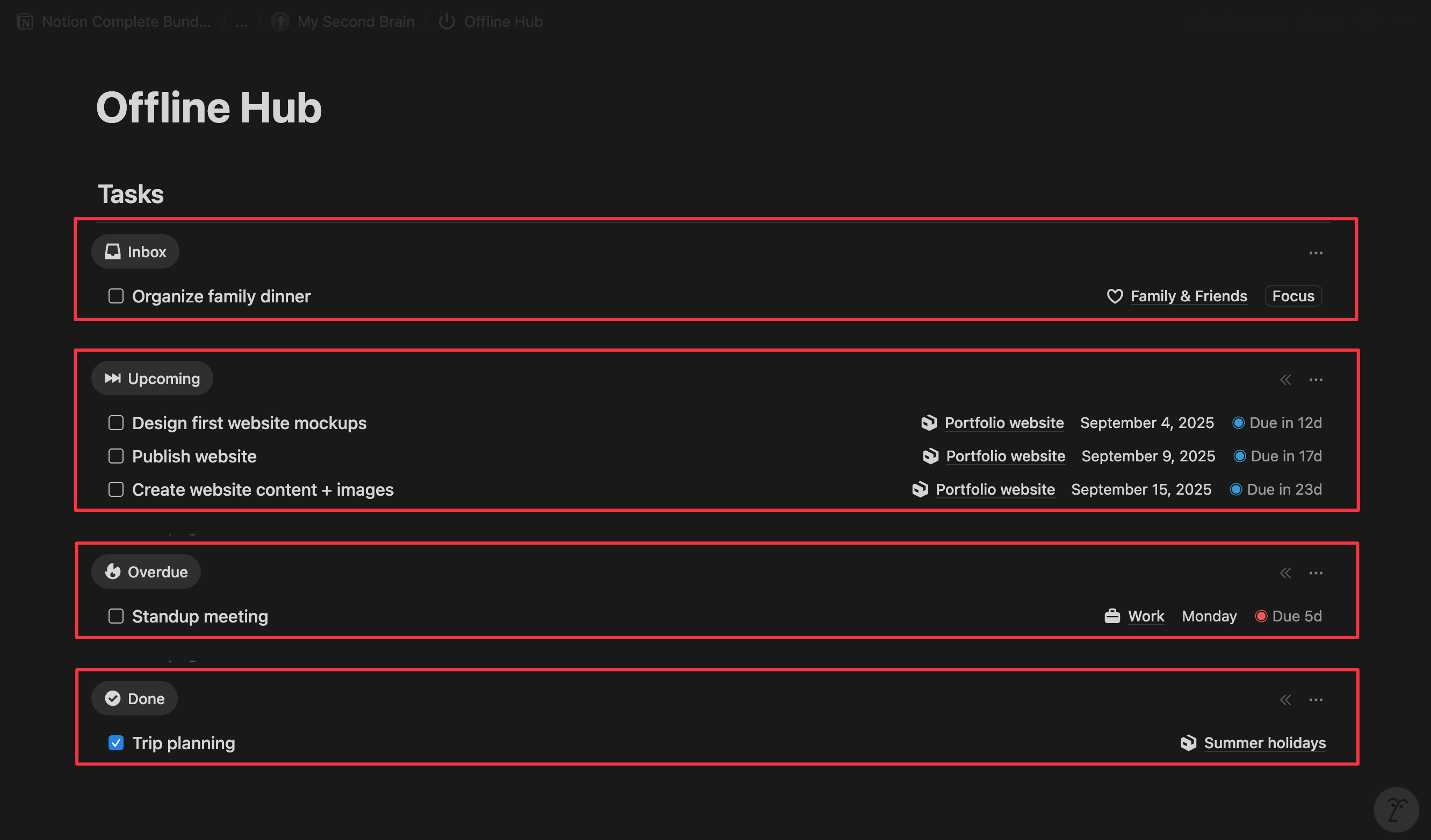
This is exactly what I did for my Notion Second Brain with 4 task views (Inbox, Upcoming, Overdue, Done). Here’s a screenshot 👇
5. Most blocks work, but advanced features don’t.
Here’s what you can and can’t do in Notion when you’re offline:
✅ Works offline:
Text, headings, lists, callouts, toggles, and columns
Database basics (Select, Multi-select, Status, Date, Checkbox, Number, etc.)
Creating new pages, sub-pages, database entries
Search across downloaded pages
❌ Doesn’t work offline:
Notion AI, automations, and buttons
Relations, rollups, formulas, and conditional formatting
File or image uploads, embeds, and exports
Notifications and reminder inbox
If it requires the web, heavy computation, or real-time sync, it won’t run until you’re online.
6. Edits from different users get merged.
What happens if you edit a page offline while a teammate edits it online? Well, Notion uses a simple system:
Deletions are respected
New additions stack on top
So if you delete a sentence while offline and they add text after it, both changes appear.
Tip: when working offline on team pages, annotate rather than rewrite (or use the “Suggest edits” feature). Clean up once you’re back online.
7. You can work offline strategically with an “Offline Hub”.
The smartest way to use offline mode is to plan ahead:
Build an “Offline Hub” page
Add linked views for your most critical filtered databases (like today’s tasks, project notes, or scratchpad)
Add links to key docs you’ll need
Toggle all of them offline on each device
Before travel, check the hub once while connected. Confirm pages are downloaded and database views show the right items. Then disconnect with confidence.
My take on Notion offline mode
Offline mode is a huge step forward. It solves the single biggest frustration long-time users had with Notion. But it’s not yet a “full replacement” for online work.
Here’s my advice:
Use it for writing, note-taking, and quick edits. It’s great for drafting ideas on the go.
Don’t expect it to replace your full system building. Without relations, rollups, and automations, complex workflows won’t run offline.
Build a lean Offline Hub. With the right prep, you’ll always have your essentials at hand during flights, travel, or internet outages.
For me, offline mode can turn long train rides from wasted hours into productive sessions. It’s not perfect, but it’s finally good enough to rely on.
That’s all for today!
I hope this helps you make the most of Notion offline mode.
Thanks for sticking with me until the end 🙏
Feel free to reply or comment if you want to share your opinion about this new feature.
See you next time,
Quentin
Founder, Notion Everything
Whenever you're ready, there are 3 other ways I can help you:
The Second Brain Notion template: Get the best system to organize your life and knowledge in one powerful, central place.
The Notion Freelance OS template: Manage and grow your freelance business with a powerful all-in-one Notion workspace.
The Notion Finance Tracker template: Take control of your finances with this comprehensive system for easy finance tracking.